- A standard 1920x1080 video cropped directly to 9:16 loses 68% of its horizontal canvas if framed incorrectly.
- Always maintain a 15% top margin and 20% bottom margin to avoid TikTok and Shorts UI button collisions.
- Use weighted bounding deadbands rather than continuous pans to eliminate viewer motion sickness.
- Trio and blurred-background layouts preserve widescreen context while filling the 9:16 vertical canvas.
- Export at 1080x1920 with high-profile H.264 at 18,000-22,000 kbps to prevent mobile platform re-compression blur.
The Geometric Challenge: 1920x1080 vs 1080x1920
When you place horizontal 16:9 footage into a vertical 9:16 frame, basic mathematics poses an immediate dilemma. A 1920x1080 image has an aspect ratio of 1.77:1, whereas a vertical 1080x1920 canvas has an aspect ratio of 0.56:1. If you punch into the horizontal clip to fill the vertical frame height, you only see 607 pixels of the original 1920 horizontal pixels. This means over 68% of your scene is outside the visible boundary.
Amateur repurposing tools make the fatal mistake of simply taking the dead center of the 16:9 video. But if your podcast host leans to the left, or a guest gestures on the right side of the frame, center-cropping cuts them in half. Professional repurposing requires intelligent subject anchoring and dynamic coordinate shifts.
The 4 Framing Layouts: Choosing the Right Presentation
Not every piece of content should be cropped into a single vertical rectangle. Depending on the source footage, there are four proven layout systems:
- Solo Subject Zoom (1:1 Punch-In): Best for single-speaker podcasts, keynotes, and reaction videos where one person commands the visual hierarchy.
- Two-Host Stacked Split (Top/Bottom): Critical for interviews and debates. The host is placed on the upper half, and the guest is placed on the lower half, creating continuous dialogue tension without jump-cutting.
- Blurred Ambient Background: The original 16:9 clip sits in the middle with black bars eliminated by an enlarged, blurred, dimmed mirror of the video in the background. Excellent for gameplay footage and product demonstrations.
- Trio Content Grid: A stacked 3-layer composition featuring top headline card, central widescreen clip, and bottom dynamic captions. This layout consistently delivers the highest click-through rate on YouTube Shorts feeds.
Safe Margins: Avoiding TikTok & Shorts UI Collisions
One of the most frequent reasons shorts fail to gain traction is interface collision. Both TikTok and YouTube Shorts overlay critical interactive buttons directly over the video:
- Right-Hand Rail: Like button, comment bubble, bookmark icon, and share arrow occupy a 110-pixel strip on the right side.
- Bottom Drawer: Channel handle, video title, hashtag description, and sound track title take up the bottom 250 pixels.
- Top Header: Search bar, following/for-you tabs occupy the top 120 pixels.
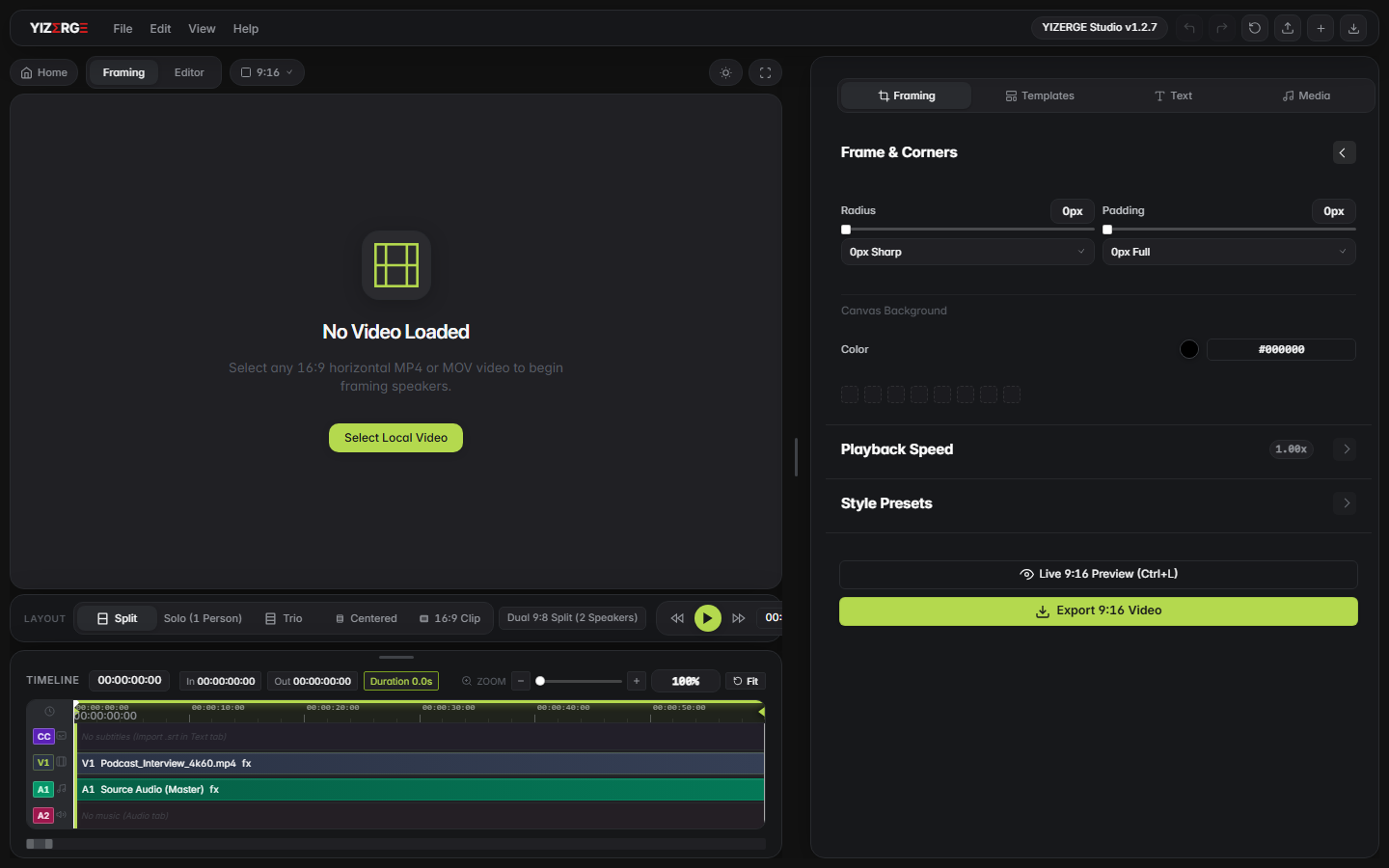
Step-by-Step Repurposing Tutorial in YIZERGE
In YIZERGE Video Editor, converting horizontal media to vertical shorts takes less than 90 seconds per clip:
- Import Source Clip: Drag your 16:9 MP4, MOV, or MKV file directly into the YIZERGE Media Bin.
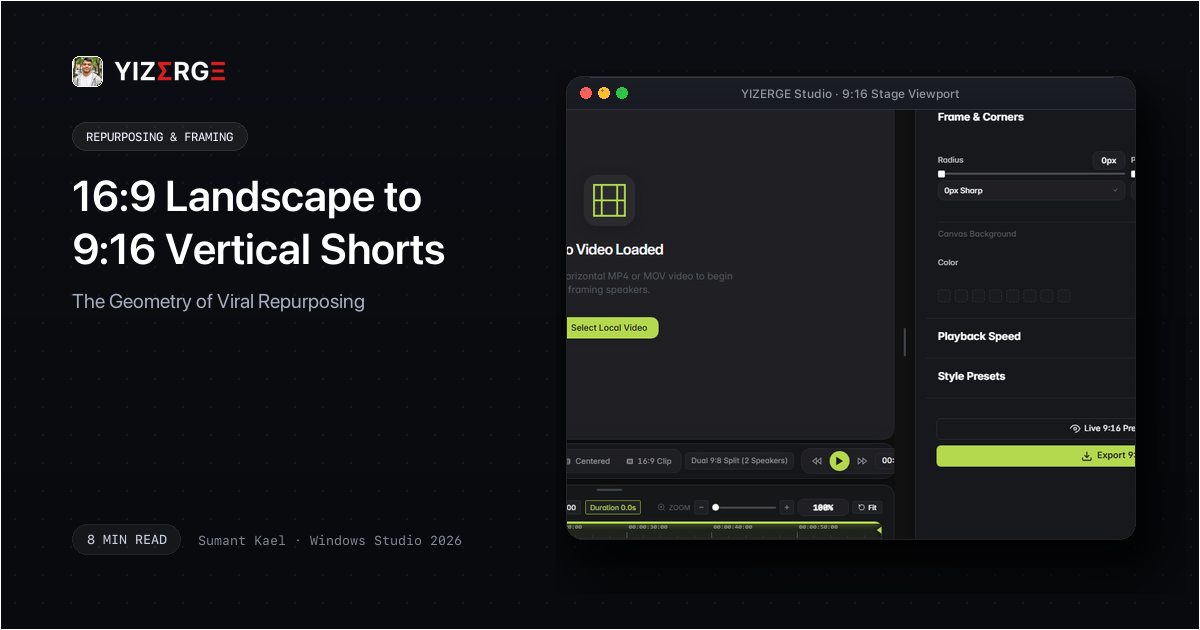
- Select Framing Preset: In the Framing Inspector, choose between Solo Speaker 9:16, Two-Host Split, or Trio Card.
- Adjust Visual Anchor: Click and drag the interactive preview stage to lock the focal point onto the speaker's eyes. YIZERGE applies sub-pixel coordinate alignment to ensure razor-sharp rendering.
- Apply Dynamic Captions: Click the Subtitles tab, import your SRT file or auto-generate subtitles, and pick the Karaoke Yellow Glow preset.
- GPU Hardware Export: Press Ctrl + E, select NVENC 4K/60fps High Profile, and hit Export. YIZERGE processes the output locally with zero cloud upload waiting time.
Avoiding Video Degradation: Export Bitrates & Resolution Math
Many creators spend hours editing, only for TikTok or YouTube to turn their crisp video into a pixelated mess. This occurs because mobile platforms run aggressive re-encoding algorithms if you upload non-compliant video files.
To ensure your vertical shorts retain maximum sharpness, follow these exact rendering standards:
| Parameter | Recommended Setting | Why It Matters |
|---|---|---|
| Resolution | 1080 x 1920 (or 2160 x 3840 4K) |
Native vertical pixel grid prevents aspect scaling distortion. |
| Frame Rate | 60.00 fps (or source 30.00 fps) |
Fluid motion keeps viewers engaged during fast text animations. |
| Video Codec | H.264 High Profile @ Level 4.2 |
Universal mobile decoding compatibility with zero dropped frames. |
| Bitrate Target | 18,000 to 22,000 kbps (CBR / VBR 2-Pass) |
Prevents platform compression artifacts during rapid movements. |
| Audio Standard | AAC Stereo, 320 kbps, 48 kHz (-14 LUFS) |
Crystal clear vocal delivery on smartphone speakers. |
Frequently Asked Questions
Yes! In YIZERGE Video Editor, you can use the Split Stage preset. This places your facecam in an anchored circular or rectangular bubble on the upper third of the vertical canvas while the core gameplay action is featured directly below.
YouTube Shorts applies an initial low-resolution pass during the first 10 minutes of publishing. Furthermore, if your source export bitrate was below 12 Mbps, YouTube's VP9/AV01 compression degrades rapid motion. Exporting at 18-22 Mbps H.264 in YIZERGE ensures pristine clarity.
Zero internet connection is required. YIZERGE is a native Windows desktop application. All video decoding, cropping, caption formatting, and hardware GPU rendering happen 100% locally on your computer.
Become an Early Tester for YIZERGE
We are inviting video creators to test upcoming Windows builds. Experience zero-degradation local GPU rendering, dynamic karaoke subtitles, and sub-frame precision.